
This guide is for bookkeepers and staff accountants who reconcile bank accounts for a list of small business clients in QuickBooks Online (QBO). With bank feeds connected, most reconciliations reach a $0.00 difference fast. That's the good news. The less good news: a zero only proves that the ticked items add up to the statement. It doesn't prove the books are right
Below are the monthly steps in QBO, five checks to run before you click Finish, and what to keep in the client file. If an account won't reach zero at all, start with our guide to finding the gap when a QBO account won't reconcile. It's written for credit cards, but the same order works for a bank account.
How to reconcile a bank account in QuickBooks Online
Before you start, have the month's bank statement and the date of the last completed reconciliation. Then clear the bank feed. Anything still in For Review for the statement period isn't in the register yet, so you can't tick it. Intuit's reconcile steps are the same ones below.
- Go to All apps > Accounting > Reconcile. In some views it's Settings > Reconcile.
- Choose the bank account. If QuickBooks shows a message about a past reconciliation, fix that first.
- Compare the beginning balance with the statement. If they don't match, stop and find out why. Common causes are an edited or deleted reconciled transaction, or an incorrect opening balance. Our reconciliation troubleshooting guide walks through the rest.
- Enter the ending balance and ending date exactly as printed on the statement. Some banks call it the new or closing balance.
- If the account isn't connected to a bank feed, add service charges and interest earned for the period.
- Select Start reconciling and tick each transaction that's on the statement. Leave anything that isn't on the statement unticked.
- When the difference reaches $0.00, pause. Don't click Finish yet.
Catching up over several months? Reconcile one statement at a time, oldest first, so each month starts from a correct balance.
If your QuickBooks offers it, upload the PDF statement at the start. Intuit's Reconcile Companion reads it and shows what paired, what's still in the feed, and what's in QuickBooks but not on the statement.
Five checks before you click Finish
Each of these can sit behind a $0.00 difference. Work through them in order.
- Uncleared checks more than two statements old. A check that hasn't cleared in 60 days may be lost, voided, or entered twice. From the Chart of accounts, run a report on the bank account filtered to Uncleared (Essentials, Plus and Advanced). Ask the client before you void anything. Every state has unclaimed property rules, so an uncashed vendor check may belong to the state.
- Uncleared deposits. An old unticked deposit needs tracing before you change anything. It may be a payment recorded twice, through Undeposited Funds and again as a new feed deposit. It may also be a wrong date or amount, or a deposit in transit. Trace the customer payment to the bank deposit.
- Feed matches you didn't make. Feed-matched transactions arrive already cleared. A match to the wrong invoice or bill of the same amount still balances. Spot-check matched items, starting with round amounts and repeat vendors.
- Transfers coded as income or expenses. A transfer to savings coded as income or an expense still reconciles, but the P&L is wrong. Check that the other account shows the same transfer in the same period.
- Past adjustments. If someone let QuickBooks add an adjustment to finish a past reconciliation, it shows on that month's reconciliation report. It's typically booked to a Reconciliation Discrepancies account, so check that account's activity too. Intuit calls adjustments a last resort for small, confirmed errors.
What an old uncleared item usually means
| Uncleared item | What it often means | What to do |
|---|---|---|
| Check older than 60 days | Lost, voided, or entered twice | Ask the client. Void, reissue, or follow the state's unclaimed property rules |
| Deposit older than one statement | Duplicate payment, wrong date or amount, or a deposit in transit | Trace the customer payment to the bank deposit before changing anything |
| Withdrawal with no statement match | Manual entry duplicated by the feed | Compare date, payee and amount, then remove the duplicate |
| Transfer cleared on one side only | Recorded in the wrong account or period | Check the other account's statement for the same dates |
Saving the QuickBooks Online reconciliation report
QuickBooks creates a reconciliation report each time you finish, showing beginning balance, cleared items, adjustments and ending balance. Keep three things:
- The report itself. It's a static snapshot, so it shows what you tied to even if someone edits a transaction later. QBO can't export it to Excel directly, but you can copy it into a workbook. Save a copy before you undo a reconciliation. Intuit warns that undoing is irreversible.
- The statement PDF for the same period.
- A one-line note for each old uncleared item: what it is, who you asked, and what happens next.
The reviewer then signs off. This is the cash line of the month-end review checklist.
Where Aqqrue fits: reconciliation as one step in every client's close
The steps above don't change from client to client. The clock does. Thirty clients with two bank accounts each is 60 reconciliations a month, before cards, journal entries, accruals and reviews.
Aqqrue is an AI work studio for accountants who work in QuickBooks Online. It keeps each client's QBO history synced and remembers that client's rules. It works through the recurring tasks on your close checklist: categorizing bank feeds, journal entries, accruals, reconciliations, books reviews and cleanups. Reconciliation is one step in that close, and it's the one this post is about.
Here it is on QuickBooks' sample company, Craig's Design and Landscaping Services. Olivia asks Aqqrue to review the Checking account as of August 31, 2026, before she reconciles it.
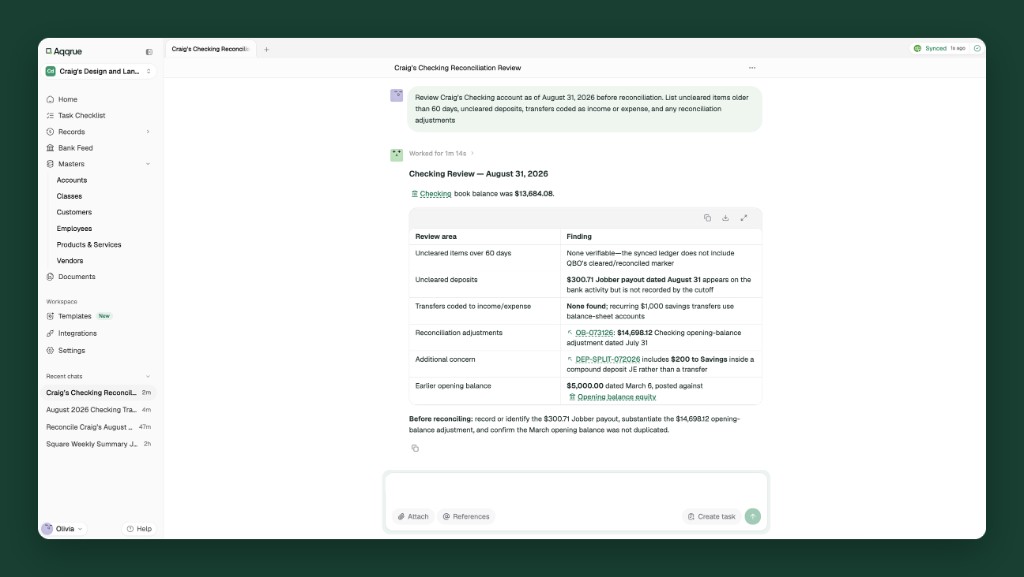
Aqqrue reads the client's synced QBO history and checks the account before you start ticking. On Craig's file it flagged three things. A $300.71 Jobber payout wasn't recorded. A $14,698.12 opening-balance adjustment needed backing up. And a $200 savings transfer was buried inside a deposit entry, which is check 4 above. It ended with what to resolve before reconciling.
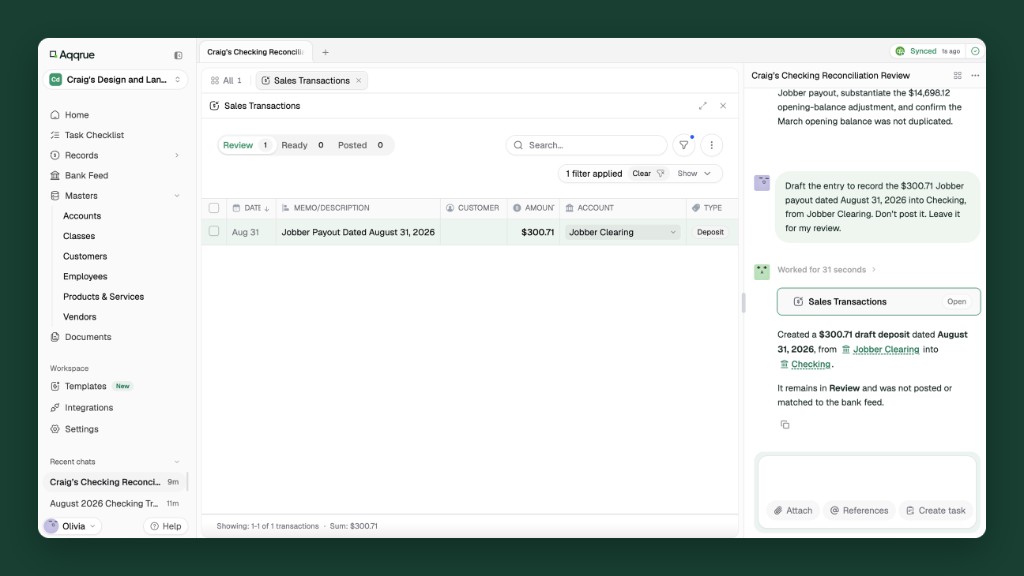
Nothing posts to QBO until you review it. If a client has a standing rule, like a monthly sweep to savings, tell Aqqrue once. It applies that rule in every close for that client.
From there, the rest of that client's close carries on in the same studio: accruals, journal entries and the review before financials go out. The reconciliation, the explanation for every open item and the sign-off stay with you.
See it on one of your own client files.
Running bank reconciliations across 30+ clients
- Reconcile first, every month. Put reconciliations near the top of your month-end close checklist, before the entries that depend on them.
- Keep a last-reconciled log. Note the date for every account, per client. More than a month behind is catch-up work.
- Make two rules firm-wide. Old uncleared items get a note, and no adjustment goes through without reviewer sign-off.
- Spot a cleanup early. Several accounts months behind on a new client needs scoping. Start with the bookkeeping checklist for new clients.