
It's the last day of the close: you've ticked every charge on the client's card statement, the statement balance is on the screen, and QuickBooks Online still shows a difference of $88.00. You check again: Same $88.
Most advice for this stops at "look for missing or duplicate transactions." This guide gives you the order to check things in, so you find the gap in minutes instead of rereading the statement line by line. If whole months are missing, it also shows you how to rebuild them from statements. For a checking or savings account that won't tie, see our bank reconciliation guide for QuickBooks Online.
Why won't my credit card reconcile in QuickBooks Online?
Usually thanks to one of four things:
- The beginning balance changed because a reconciled transaction was edited or deleted.
- Transactions are missing from QuickBooks or entered twice.
- A charge sits in the wrong account.
- The statement date or balance was keyed in wrong.
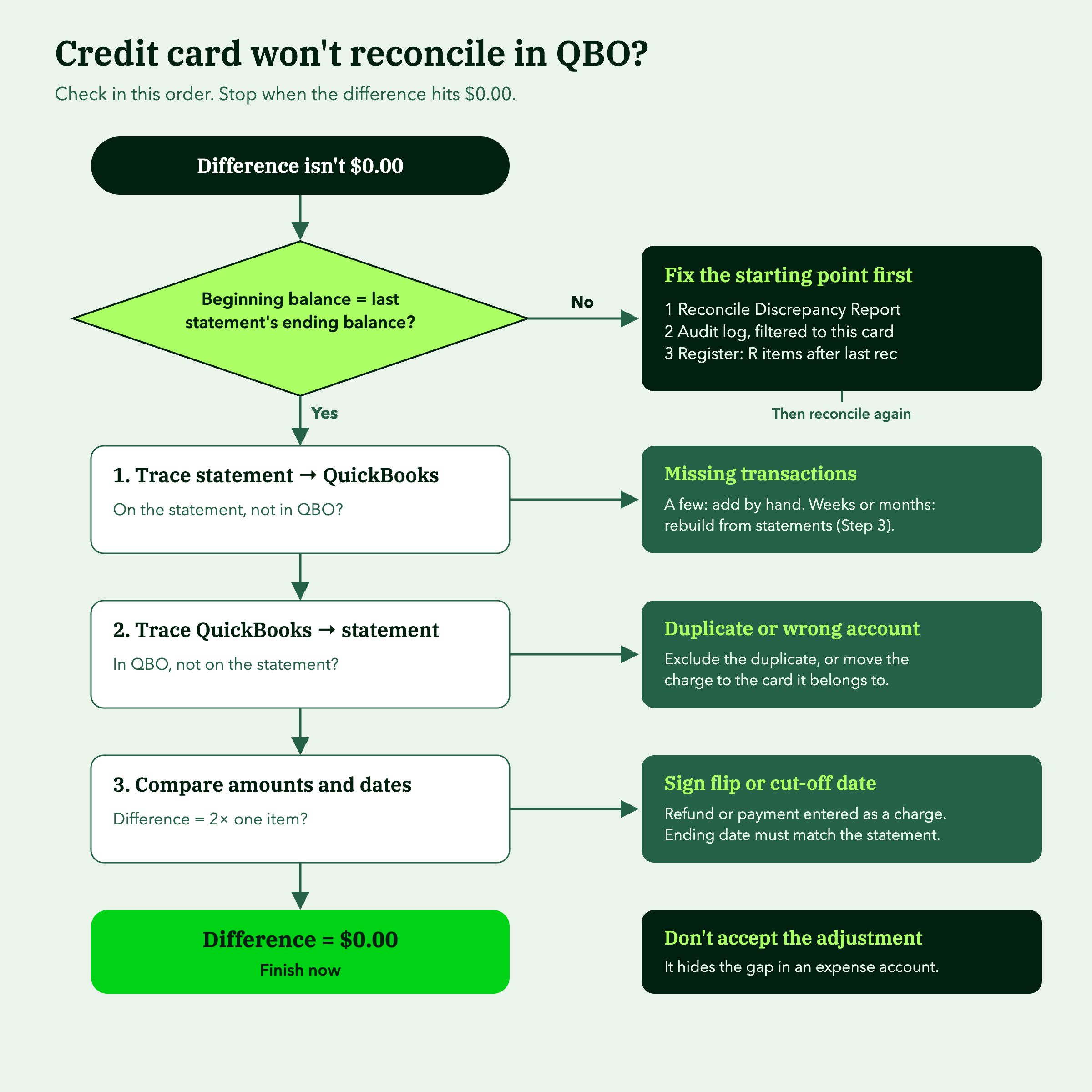
Check the beginning balance first. If it's off, nothing else will tie.
Step 1: Rule out the beginning balance
Every reconciliation starts from the ending balance of the last one. If someone edited, deleted, voided or unreconciled a transaction in a period you already closed, the starting point moves. This month can't be balanced no matter how carefully you tick.
QuickBooks flags this on the reconcile screen. When it does:
- Open the Reconcile Discrepancy Report from the alert and read the "What happened" column for each changed transaction.
- Check the audit log, filtered to the card account and period, for deleted or voided transactions the report doesn't list.
- Open the card's register and filter by reconcile status. Anything marked R and dated after your last completed reconciliation needs a look.
Need to reopen a whole past reconciliation? Undoing a full reconciliation is restricted to authorized roles, including the Primary Admin, Company Admin, In-house Accountant, and an accountant user with access through QuickBooks Online Accountant. Other users may be able to unreconcile individual transactions, depending on their permissions.
For a card that has never been reconciled, the culprit is usually the opening balance. Compare it with the statement balance from the day before the card's history starts in QuickBooks.
Undoing a whole reconciliation and unreconciling one transaction are two different fixes. Pick the smaller one whenever it will do the job:
| Undo an entire reconciliation | Unreconcile individual transactions | |
|---|---|---|
| What it does | Reverses the whole reconciliation, plus every reconciliation completed after it | Changes one transaction from reconciled (R) back to uncleared |
| Use it when | So much of a past reconciliation is wrong that starting over is cleaner | One or two items were reconciled by mistake or need correcting |
| Who can do it | Primary Admin, accountant user or in-house accountant | Done one transaction at a time in the account register |
| Where | Reconcile > History by account > Action column > Undo | Chart of accounts > the account's register > click the R until the box is blank > Save |
| What else changes | The beginning balance reverts to the last remaining reconciliation. The reconciliation report and its attachments are deleted | The next reconciliation's beginning balance moves by that transaction's amount |
| Can you take it back? | No. Intuit treats it as permanent, so download the report first | Yes. Tick the transaction again in your next reconciliation |
A rule of thumb: if you can name the transactions that are wrong, unreconcile those. If you can't trust the reconciliation at all, undo it, and remember that undoing January in May also undoes February through April. Undo also leaves alone any transaction someone cleared by hand outside a reconciliation, so check the audit history for those.
Intuit updated its steps for accountant users in October 2026, and the menus are shifting as QuickBooks Online Accountant moves to Intuit Accountant Suite. Check Intuit's current guide to undoing a client's entire reconciliation before you start, and its separate guide to unreconciling individual transactions.
For a card that has never been reconciled, which is common when you onboard a new client's books, the culprit is usually the opening balance. Compare it with the statement balance from the day before the card's history starts in QuickBooks.
Step 2: Find the gap, in this order
Once the starting point is right, the difference lives somewhere in this month. Work through the causes in this order:
- Missing transactions. The feed skipped them or the connection broke for a stretch. Trace from the statement to QuickBooks: anything on the statement without a match is missing.
- Duplicates. A charge entered by hand and then pulled in by the feed, or a CSV import that overlapped the feed's dates. Trace from QuickBooks to the statement: anything in QuickBooks that isn't on the statement is a candidate.
- Sign flips. A refund or payment recorded as a charge. A useful tell: the difference is exactly twice one transaction's amount.
- Wrong account. A charge from this card posted to the bank account or to a second card. This happens often when a client holds two cards from the same issuer.
- Cut-off dates. Charges dated on the statement's closing day can land on either side of the period. Make sure the ending date you entered matches the statement exactly.
Two habits speed this up. Keep the reconcile screen open in one browser tab and make fixes in a second tab, then refresh. And don't let QuickBooks post an adjustment for the difference. That buries the problem in an expense account where next month's reviewer won't see it. If a real correction is needed, record it as a journal entry with a memo that someone reviews.
Worked example: tracing the $88 difference
Here's how the $88.00 from the opening gets found. The figures are illustrative. The client's card statement shows:
| Statement line | Amount |
|---|---|
| Beginning balance | $2,870.15 |
| Charges | + $1,894.45 |
| Payments and credits ($1,506.00 payment, $44.00 supplier refund) | − $1,550.00 |
| Ending balance | $3,214.60 |
QuickBooks shows a cleared balance of $3,302.60, so the books say the client owes $88.00 more than the issuer does. Work through the checks in order:
| Check | What you look at | Result |
|---|---|---|
| 1. Beginning balance | QuickBooks beginning balance vs last month's statement closing balance | Both $2,870.15. Ruled out |
| 2. One $88.00 item | Filter the register and statement for $88.00, looking for a missing or doubled entry | Nothing at $88.00 |
| 3. Half the gap, $44.00 | Look for a $44.00 item recorded with the wrong sign | The $44.00 supplier refund was entered as a charge |
| 4. Fix and re-check | Change it to a credit card credit, then refresh the reconcile screen | Difference: $0.00 |
The refund entered as a charge added $44.00 to what the client owes, when it should have taken $44.00 off. That's why the gap is twice the transaction. If step 2 had turned up an $88.00 charge on the statement with no match in QuickBooks, the fix would be adding the missing charge instead.Step 3: Rebuild missing transactions from statements
If the gap is a handful of charges, add them by hand. If it's weeks or months, rebuild from statements instead. Feed history is often short: depending on the bank, a new connection may only pull the last 90 days.
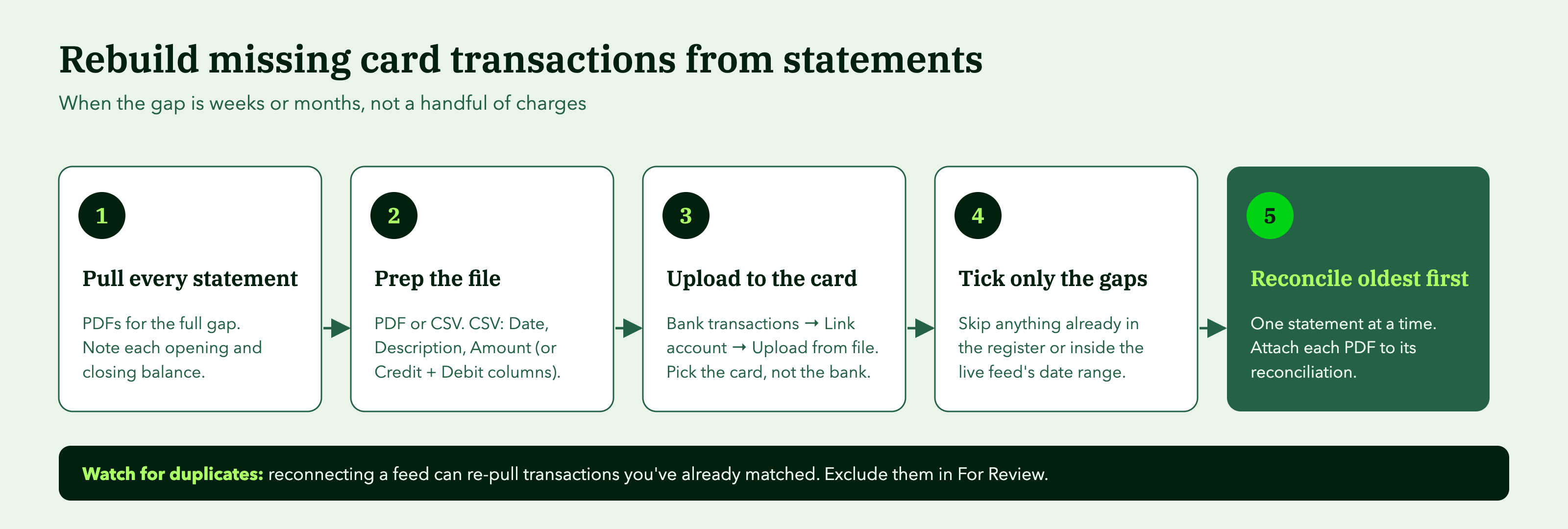
Pull every statement for the gap. Download PDFs from the card issuer's portal or ask the client. Note each statement's opening and closing balance.
- Get the transactions into a file QuickBooks accepts. Upload from file takes CSV, QFX, QBO and OFX files, and the QuickBooks team now lists PDF and image statements too. If you're working from a CSV, use QuickBooks' 3-column layout (Date, Description, Amount) or 4-column layout (Date, Description, Credit, Debit). Keep one date format and leave cells blank instead of entering zeros. Card files often list transactions newest first, so check that charges and payments come in with the right signs.
- Upload into the card account. Go to Bank transactions, open the dropdown next to Link account and choose Upload from file. Select the credit card account, not the bank account.
- Tick only the missing transactions. Leave out anything already in the register or still inside the live feed's date range. If a duplicate slips through, exclude it from For Review rather than deleting a categorized entry.
- Reconcile one statement at a time, oldest first. Each finished reconciliation becomes the correct starting point for the next. Attach the PDF to each one so the next reviewer can see what you tied to.
One warning: reconnecting a bank feed won't delete your existing data, but it can re-pull transactions you've already matched. If you reconnect, plan to clear duplicates afterward.
When this is happening with more than one card
If several accounts are off, or the gap runs across quarters, you're no longer fixing a reconciliation. You're doing a bookkeeping cleanup, and it should be scoped and priced as one.
Stop it from happening again
These problems are cheaper to catch at month-end than six months later. Two checks catch most of them:
- Feed health. At each close, confirm every card connection updated recently and the last transaction date is current.
- Statement tie-out. Reconcile every card to its statement each month, and treat any change to a reconciled period as something the reviewer signs off on.
Both belong on your month-end review checklist.
Aqqrue imports more than three years of a client's QBO history and connects to spend tools like Ramp and Brex. Gaps and duplicates surface as anomalies before you start the close. Reconciliations run from your close checklist, and changes post to QBO only after you review them.
Stuck on a client file right now? Book a demo and run the reconciliation in Aqqrue.