
The close is done and the reports are ready to send. The client takes a quick look, and replies: "Why does the balance sheet show $14,200 in cash when my bank app says $11,900?"
You're not alone, nobody wants that email. The month-end review is the step that stops it. It's the check a staff accountant, firm owner or senior bookkeeper runs on someone else's close before financials go out.
Most month-end checklists are written for the person doing the close, and the "have someone review it" that follows doesn't quite explain what exactly needs reviewing. This month-end review checklist for bookkeepers is for the reviewer: what to look at, in what order, and what has to be true before you hit send.
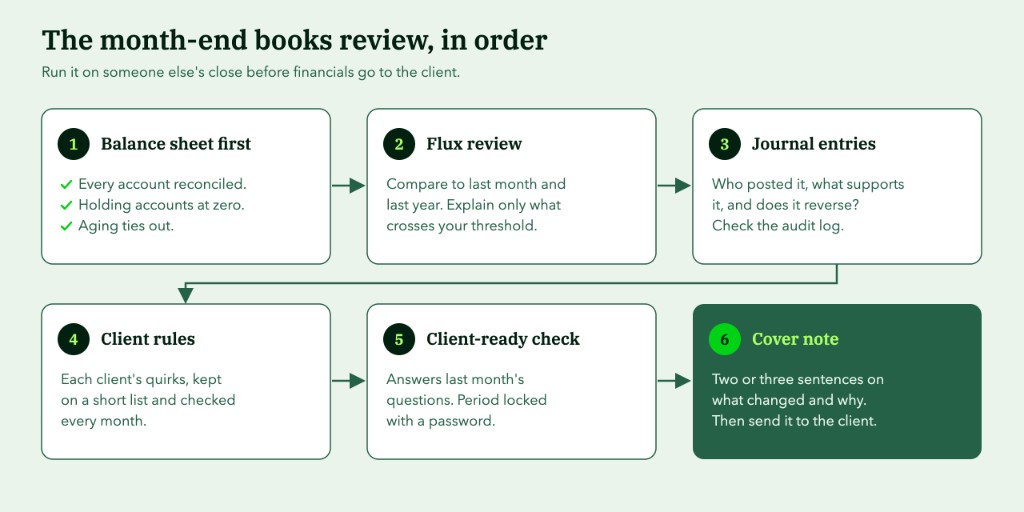
The checklist at a glance
- Every bank, card and loan account reconciled to its statement
- Uncategorized, Ask My Accountant and Undeposited Funds at zero or explained
- AR and AP aging tie to the balance sheet; nothing over 90 days without a note
- Payroll, sales tax and loan balances match their source statements
- Retained earnings unchanged since the last year-end close
- Every account over your flux threshold has a one-line explanation
- Every manual journal entry has a poster, support and, if it's an accrual, a reversal
- This client's own rules checked
- Package answers last month's questions, period locked
- Cover note written
Download a template of the month-end review checklist for free
Each step is explained below.
1. Balance sheet first
The P&L gets the attention, but the balance sheet is the faster place to find errors. Most P&L mistakes leave a mark there: a balance in a holding account, an unreconciled bank, a receivable nobody recognizes. Check these before you open anything else:
- Every bank, card and loan account reconciled to its statement, with no old uncleared items. A check that's been outstanding for four months is a question, not a timing difference. If a card won't tie, here's how to find the gap when a credit card won't reconcile.
- Review holding accounts. Check Uncategorized Income, Uncategorized Expense, Ask My Accountant and Undeposited Funds to ensure balances are properly classified, supported and accounted for.
- AR and AP aging tie to the balance sheet. Run the aging summaries and compare totals. Anything more than 90 days old needs a note or a write-off decision.
- Payroll liabilities, sales tax payable and loan balances match their sources: the payroll provider, the tax filing and the lender's statement.
- Review retained earnings for unexpected movements since the last year-end close. Trace any change to its underlying transactions and determine whether a prior-period adjustment or other equity posting explains it.
Intuit's accountant tools include a Books review feature that covers part of this. (QuickBooks Online Accountant is being replaced by Intuit Accountant Suite at the end of 2026, so where you find it depends on which one your firm is on.) It flags uncategorized transactions and transactions missing a payee, lists accounts that still need reconciling, and surfaces unusual balances. It won't tell you why a number moved or whether it fits this client's rules, since that part is still the reviewer's job.
2. Flux review: what moved, and why
Once the balances are right, look at movement. Run the Balance Sheet Comparison and Profit and Loss Comparison reports in QuickBooks Online against last month and the same month last year.
Don't try to explain every change. Set a threshold and only investigate what crosses it. A common approach is a percentage plus a dollar floor, for example 10% and $1,000, so a small account doubling from $40 to $80 doesn't eat your time.
Below is an example flux review. A reasonable threshold: a change of at least 10% and at least $1,000 against last month.
| Account | Last month | This month | Change | % change | Needs a note? |
|---|---|---|---|---|---|
| Revenue | $42,000 | $47,040 | +$5,040 | +12% | Yes |
| Contractor costs | $2,400 | $3,900 | +$1,500 | +63% | Yes |
| Software subscriptions | $40 | $80 | +$40 | +100% | No (under $1,000) |
| Office supplies | $900 | $950 | +$50 | +6% | No |
| Accounts receivable | $21,000 | $27,300 | +$6,300 | +30% | Yes |
| Accrued liabilities | $3,500 | $0 | −$3,500 | −100% | Yes |
For each flagged account, write one line: what changed and why. "Revenue up $5,040: two new retainers started" is enough. If you can't write the line, you've found something to fix.
Balance sheet flux matters as much as P&L flux. Receivables growing faster than revenue often means collections are slowing. Accrued liabilities dropping to zero often means someone forgot an accrual.
3. Journal entries: where exceptions hide
Bank feeds and bills follow rules, but journal entries don't. They're how people fix mistakes, book accruals and move money between accounts, which makes them a likely place for a new one.
Run the Journal report for the period and filter to journal entries. For each one, check three things:
- Who posted it. The audit log shows the user and the time for every change (you need admin access to see it).
- What supports it. An accrual schedule, a client email, a calculation. No support, no approval.
- Whether it reverses. Check whether each accrual is intended to reverse. Confirm that scheduled reversals were posted correctly and that the current-period expense or revenue hasn't been duplicated.
While you're in the audit log, look for any edits dated in closed periods.
4. This client's rules
Every client has quirks the general checklist won't catch: revenue recognized on delivery instead of invoice, a class or location that has to be on every transaction, owner draws that belong in equity, a vendor that's always split between two accounts.
Keep these in a short list per client and check them every month. When a reviewer changes, this list is what keeps the quality the same.
5. The client-ready check
Before you send anything, read the package the way the client will:
- Does it answer what the client asked about last month?
- Are the reports formatted the way this client expects?
- Is the period locked? Once the review is complete and any required approvals are obtained, set the closing date in QuickBooks Online to help prevent unapproved changes to the finalized period.
6. Last step: the cover note
Write two or three sentences on what changed and why. "Revenue was up 12% on two new retainers. Cash dipped because the annual insurance premium landed this month." It gives the client the story behind the numbers.
That note is also the start of management commentary, and it's the easiest way to show the client you understand their numbers.
When review turns up old problems
Sometimes the review finds something that isn't this month's: a reconciliation that broke in spring, or a balance nobody can explain. Don't fold that into the monthly close. It's a separate project: scope the bookkeeping cleanup and price it on its own.
Spend less time redoing the close, and more time reviewing it.
Get a head start on next month's review: Aqqrue runs reconciliations, journal entries and accruals from your close checklist and remembers each client's rules, so your review is checking work, not redoing it.